
Last updated: May 2026. This article is reviewed quarterly.
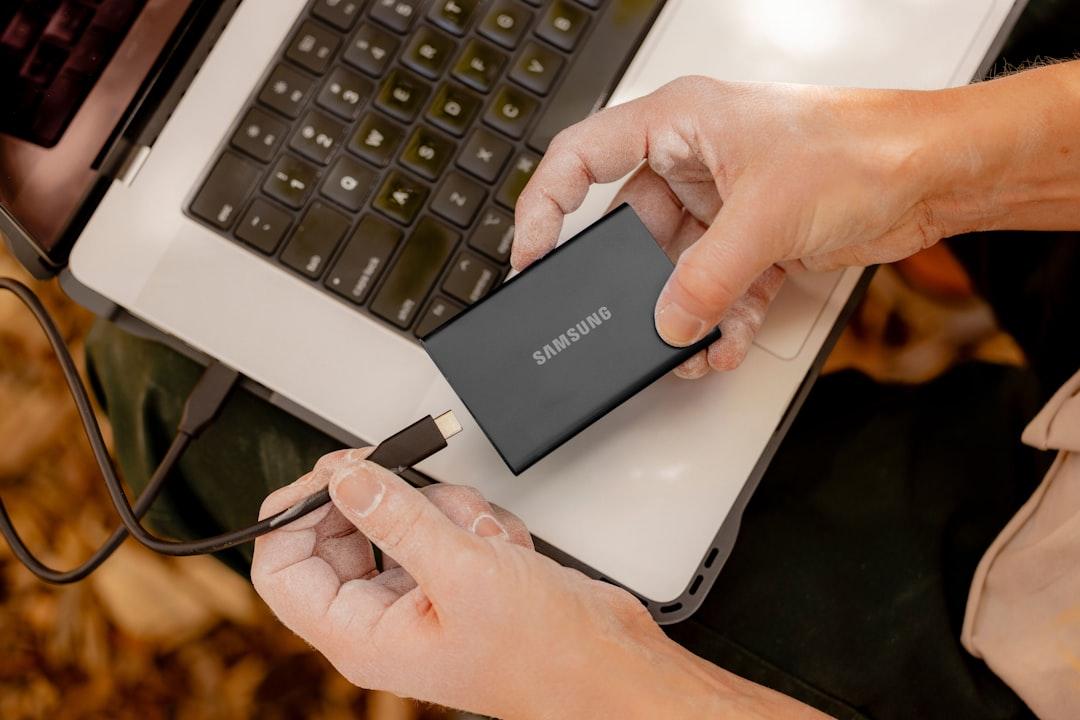
If you only listen to marketing, this decision sounds easy. SSDs are faster, smaller, cooler, and generally more pleasant to use. So the answer must be SSD, right?
Not quite. For backing up photos and videos, the real answer depends on what kind of backup you mean. If you are moving active projects around, editing from the drive, or carrying a travel backup in your bag, an SSD usually feels better immediately. If you are archiving years of family photos, storing massive raw footage libraries, or building a Time Machine disk with lots of headroom, a hard drive still makes a lot of sense.
This guide is an editorial assessment based on current Apple Time Machine support guidance and current Seagate product and storage guidance reviewed on May 29, 2026. I am not pretending one technology kills the other. The honest answer is that each does a different job well, and most people who care about their files eventually end up using both.
Affiliate disclosure: If you buy through links on Click2Future, we may earn a commission at no extra cost to you. That never changes the way we judge storage choices, workflow fit, or long-term value.
The short answer
Short answer: An external SSD is better for speed, portability, and active work. An external HDD is better for cheap capacity and long backup runs where price per terabyte matters most. For many photographers and video shooters, the smartest setup is SSD for current projects and HDD for deeper backup storage.
| Question | Verdict |
|—|—|
| Best for working files | External SSD |
| Best for cheapest large-capacity backups | External HDD |
| Best for travel | External SSD |
| Best for Time Machine or giant archives | Usually external HDD |
| Best overall setup | SSD for active work + HDD for long-term backup |
Why SSDs feel so much better day to day
Short answer: SSDs win the emotional part of ownership because they remove friction. They are faster to ingest to, faster to browse, lighter in a bag, and easier to trust on the move because there are no spinning parts to knock around.
This is the simple reason so many creators move toward SSDs first. The difference is not just benchmark speed. It is workflow smoothness.
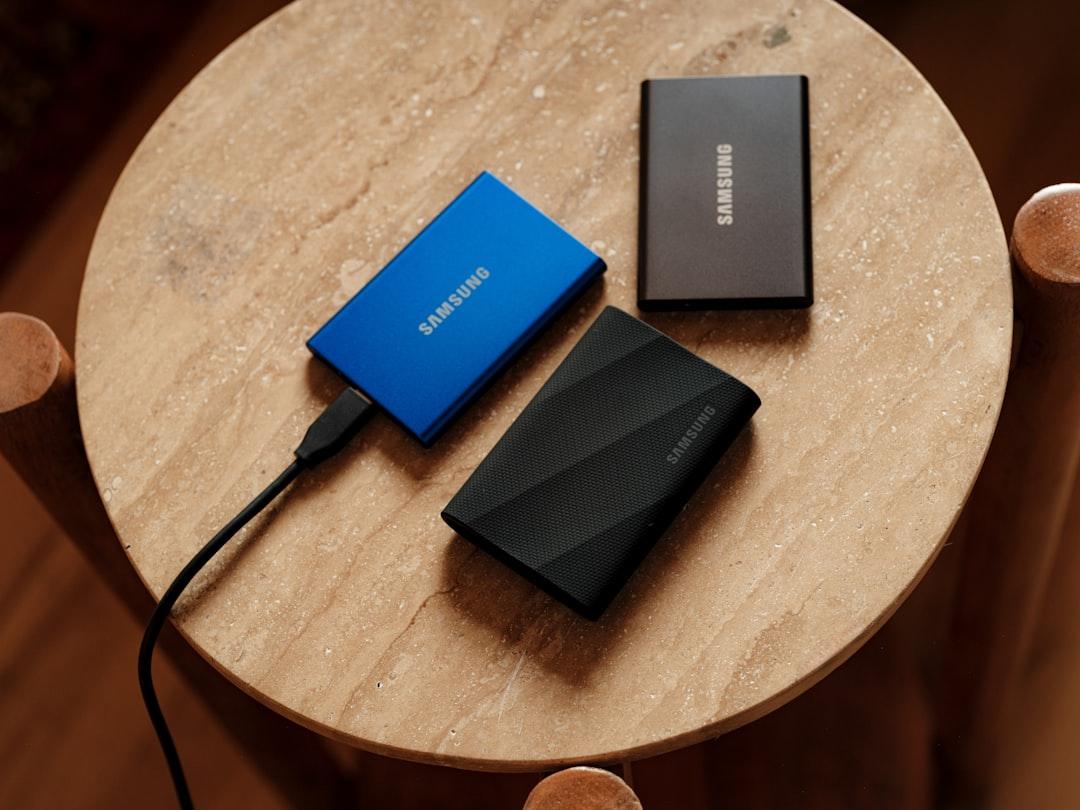
Current Seagate materials for the One Touch SSD position the category around portability and fast file movement, with transfer speeds up to 1,030 MB/s, broad Mac and Windows compatibility, and a pocket-friendly design. That matters if your backup routine includes any of the following:
- dumping cards after a shoot
- opening Lightroom or Capture One catalogs from the drive
- carrying footage between a laptop and desktop
- making a second copy before leaving a set or client location
When those are your real-life tasks, an SSD is usually the more satisfying tool. You plug it in, files appear quickly, previews load quickly, and transfers feel modern instead of patient.
Seagate’s broader storage guidance also explains the basic split clearly: SSDs are the performance-first option when quick access and low latency matter, while hard drives still dominate where raw capacity and cost efficiency matter more. That is exactly how most consumers should think about the choice.
There is also a durability nuance people often flatten into bad advice. SSDs do not have moving parts, so they are generally better suited to commuting, travel, and everyday bumps than a spinning portable hard drive. That does not make them indestructible. It just means the category is better aligned with chaotic mobile use.
If you are the kind of person who backs up in coffee shops, airport lounges, hotel rooms, or passenger seats, the convenience advantage alone can be worth paying for.
Why hard drives still win more backup jobs than people admit
Short answer: Hard drives still win on one brutal metric: usable terabytes for your money. If your photo and video library is already measured in multiple terabytes, the price jump to SSD gets real very fast.
This is the part SSD-first advice often skips. Backups are about redundancy, not vibes. The moment you start thinking properly about backup strategy, capacity becomes a serious budget line.
Apple’s current Time Machine guidance is a good reality check here. Apple says your backup disk should ideally have at least twice the storage capacity of your Mac, and Apple also recommends using that backup disk only for Time Machine backups rather than treating it like a mixed-purpose drive. That advice gets expensive in SSD form very quickly.
If your Mac has 1TB of internal storage, Apple wants you thinking more like 2TB for the backup target. If your working photo and video files already live across multiple external drives, you may want even more breathing room than that. This is exactly where HDDs stay relevant.
Hard drives are slower, yes. They are also the reason normal people can afford multi-terabyte backup habits at all.
For home backup, studio backup, and archive backup, slower is often fine. Backups are supposed to happen in the background, overnight, or on a schedule. You do not need 1,000 MB/s to create a copy you rarely touch. You need enough space to keep making complete backups without running out of room immediately.
That is why hard drives remain the sensible default for:
- large Time Machine volumes
- media archives you do not edit from directly
- secondary or tertiary backups
- households with many years of family photos and phone videos
If your backup drive mostly sits on a desk and quietly catches copies of your work, the hard drive case is still strong.
The best answer for most people is not SSD or HDD. It is both.
Short answer: The smartest setup is usually a fast SSD for active files and a larger HDD for deeper backup. One gives you speed. The other gives you backup depth without wrecking your budget.
This is where Kahneman’s System 1 and System 2 thinking becomes useful. System 1 sees a faster SSD and says, “Buy the better thing.” System 2 asks a harder question: what exactly is the job?
If the job is:
- editing current projects
- backing up field work before heading home
- carrying a library with you
- quickly restoring recently used files
then SSD is often the better answer.
If the job is:
- keeping years of completed projects
- backing up a Mac automatically
- storing multiple generations of family media
- maintaining a second or third copy
then HDD often makes more financial sense.
The hybrid setup solves both problems:
1. Keep your current or frequently used work on an external SSD.
2. Copy finished or older projects to a larger external HDD.
3. Maintain at least one additional backup beyond whichever drive you use daily.
That setup is not glamorous, but it is the one that usually ages best.
What Mac users should think about before buying
Short answer: If you are buying for a Mac, capacity and formatting matter almost as much as drive type. Apple’s current guidance still strongly favors giving Time Machine plenty of space and treating that disk as a dedicated backup target.
According to current Apple support guidance:
- a backup disk should ideally be at least twice your Mac’s storage capacity
- Time Machine can ask to erase and format a disk during setup
- APFS or APFS Encrypted is the preferred format for a Time Machine backup disk on current Macs
That means a small SSD can be a great project drive but a bad Time Machine drive, simply because it fills too fast. A 1TB portable SSD looks attractive until you remember your Mac already has 1TB internally and Apple would rather you have 2TB or more for backup breathing room.
This is where buyers confuse a great external work drive with a great backup drive. They are often not the same thing.
If you are shopping specifically for Time Machine, capacity discipline matters more than transfer-speed bragging rights.
Which one should photographers and video shooters actually buy?
Short answer: Buy the drive type that matches how often you touch the files. If the files are active, SSD is usually the better buy. If the files are mostly insurance, HDD is usually the better buy.
Here is the simplest decision guide I can give:
Choose an external SSD if:
- you travel with your backup drive
- you edit directly from the drive
- you often import or export large media files
- you want the smallest, lightest option
- you are willing to pay more for less hassle
Choose an external HDD if:
- you need lots of storage cheaply
- the drive will mostly live at home or in the studio
- you want a large Time Machine target
- your backup runs happen overnight anyway
- you care more about capacity than speed
Choose both if:
- you shoot a lot
- you keep long photo or video histories
- you do paid work
- you would be genuinely upset by losing files
That last category is the real one. The moment your files matter, the conversation stops being “Which drive is best?” and becomes “How many copies do I have?”
Final verdict
Short answer: External SSD is better for active backups, travel, and everyday creator workflow. External HDD is better for high-capacity backup value. If you want the most honest recommendation instead of the flashiest one, buy the drive for the job instead of treating every backup task like it is the same.
If I had to summarize this in one sentence, it would be this: SSDs are better tools, while HDDs are often better backup buys.
That is why the right answer changes depending on whether you are protecting today’s footage or the last five years of it.
For most Click2Future readers, the practical recommendation looks like this:
- one SSD for current projects or mobile backup
- one larger HDD for archive or Time Machine
- one more copy somewhere else if the files really matter
That is less exciting than pretending technology solved backup anxiety. It is also far closer to the truth.
FAQ
Is an external SSD safer than an HDD for backups?
Short answer: It is usually safer for travel and daily handling because there are no moving parts, but no drive type is safe enough to be your only copy. Safety comes from redundancy more than from the storage technology itself.
If you drop one drive into a bag and call it your whole backup strategy, the problem is not SSD versus HDD. The problem is that you only made one copy.
Is SSD or HDD better for Time Machine?
Short answer: For many people, HDD is the more practical Time Machine choice because Apple recommends generous capacity, and hard drives make that affordable. SSD can work, but the cost rises quickly once you size the disk correctly.
If your Mac has lots of internal storage, a small SSD can feel cramped surprisingly fast as a backup target.
Can you edit video directly from an external HDD?
Short answer: Sometimes, yes, especially for lighter work. But for smoother browsing, ingest, and active project use, an external SSD is usually the better experience.
That is why so many creators use HDD for backup and SSD for current work.
What is the best setup for backing up photos and videos?
Short answer: For most serious users, the best setup is a fast SSD for active files and a larger HDD for archive or scheduled backups. That gives you both convenience and capacity without overspending on the wrong part of the workflow.
If you are choosing only one drive today, decide whether your top priority is speed or space. That answer will tell you more than any benchmark chart.
The SSD plus HDD split you outlined feels like the first backup advice that actually matches real life. I keep my current Lightroom catalog on a portable SSD, but my old family photos and finished client galleries are eating up space fast. Would you trust a large desktop HDD as the main archive if I still keep one extra cloud copy, or do you think photographers should always have two physical local copies as well?
Hey Melissa, for many photographers that setup is already very reasonable: portable SSD for active work, large HDD for archive, and cloud as the off-site layer. If the archive really matters, I still like having two copies you control locally at some point, even if one is updated less often. Cloud is great protection, but restore times and account surprises are the two reasons I do not like making it the only backup beyond a single HDD. – Alex